You can cancel your event and add a specific cancellation reason.
Navigation: UKG Learning > Academy Workspace > Training Admin > Manage Training > Virtual Events or In-Class Events
- Locate the event you want to cancel and select it by title.
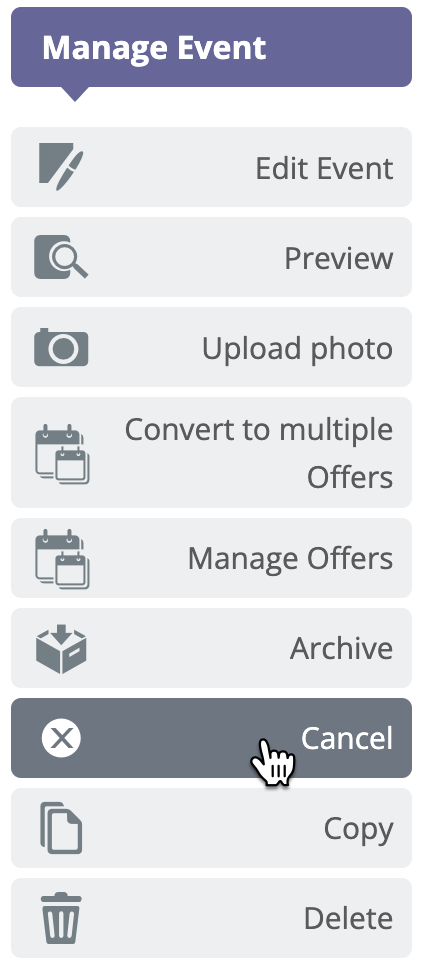
- Select the Manage Event option.
- Select Cancel.
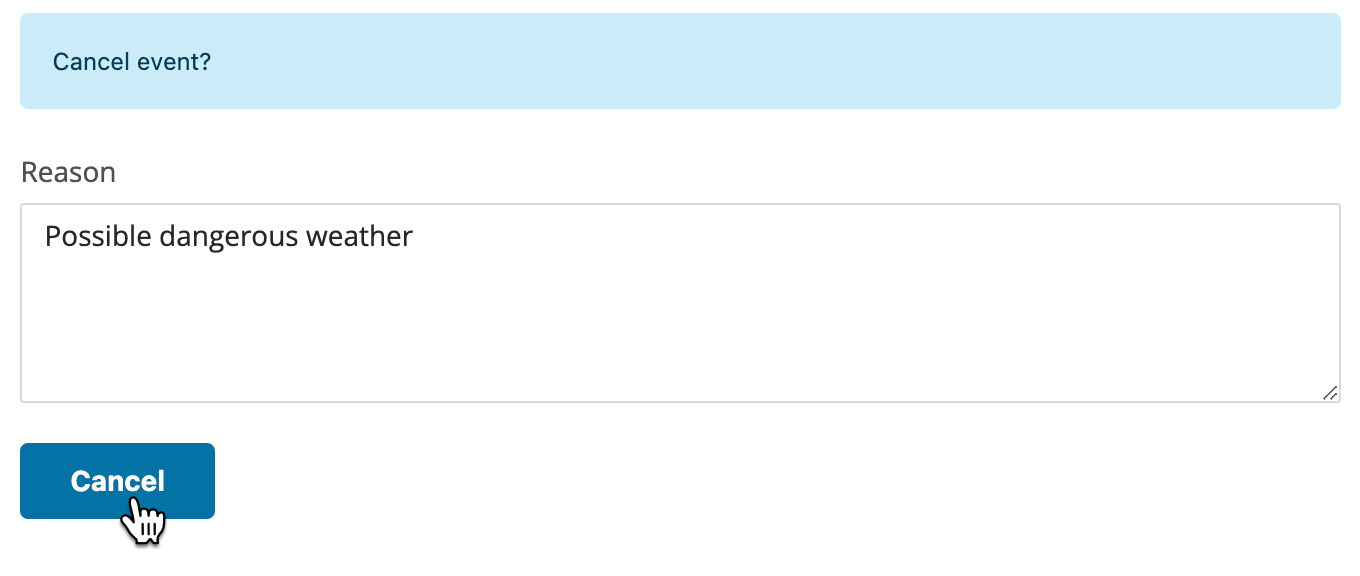
- In the pop-up window that appears, add the cancellation reason select Cancel.
- A warning appears, clarifying that canceling an event will also cancel all related sessions. Select OK to continue or Cancel to go back.
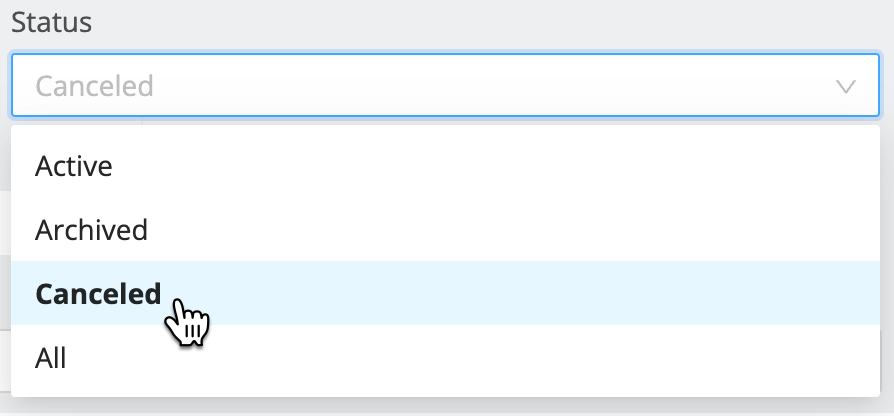
You can find all of the events that were canceled along with the cancellation reasons by using the filtering options.
When a canceled offer is part of an event-bundle, several recalculations will take place, based on the attendance rules that you had set during the event-bundle creation.
Note:
- Canceling the main event also cancels ALL associated sessions for the event.
- When an event is connected to Microsoft Teams, canceling the event in the Learning solution should automatically remove it from both the Learning solution calendar and the Microsoft Teams calendar. If the event continues to appear on the Microsoft Teams calendar after it has been canceled, please reach out to Microsoft Support for further assistance.
- In some cases, a user may receive a Microsoft Teams notification email that includes the word "Canceled" in the subject line. While this wording may suggest that the entire event has been canceled, it is important to clarify that this is not always the case. This notification may simply be triggered by the user's unregistration or removal from the event, rather than a cancellation of the event itself. As such, the appearance of the term "Canceled" in the subject line does not necessarily indicate that the event has been canceled for all participants.